React Native SDK
If your app is using React Native the SDK helps you to easily integrate appcockpit.dev.
Links
Functionality
Versions
Whenever the SDK detects a new version it will show an alert or UI component informing the user and ask them to update. Optional updates can be dismissed — once dismissed, the same version won't be shown again (persisted via AsyncStorage).
Maintenance mode
When maintenance mode is active, the SDK displays a full-screen overlay blocking access to the app and periodically re-checks until maintenance ends.
Installation
Install via npm
npm install appcockpit-react-native-sdk
Peer Dependencies
@react-native-async-storage/async-storage>= 1.0.0react>= 16.9.0react-native>= 0.59.9
Setup
-
Make sure you followed the Getting started guide
-
Copy your
API Tokenfrom the app settings
Quick Start
import {
  AppUpdateProvider,
  MaintenanceProvider,
  type AppInfo,
  type MaintenanceInfo,
} from "appcockpit-react-native-sdk";

const appInfo: AppInfo = {
  platform: "ios",
  appId: "<appcockpit_app_id>",
  appstoreId: "123456789",
  appVersion: "2.5.0",
  environment: "production",
  userId: "12345", // optional
};

const maintenanceInfo: MaintenanceInfo = {
  appId: "<appcockpit_app_id>",
  environment: "production",
};

function App() {
  return (
    <AppUpdateProvider info={appInfo} apiToken="your-api-token">
      <MaintenanceProvider info={maintenanceInfo} apiToken="your-api-token">
        <YourApp />
      </MaintenanceProvider>
    </AppUpdateProvider>
  );
}
Pre-built update version UI
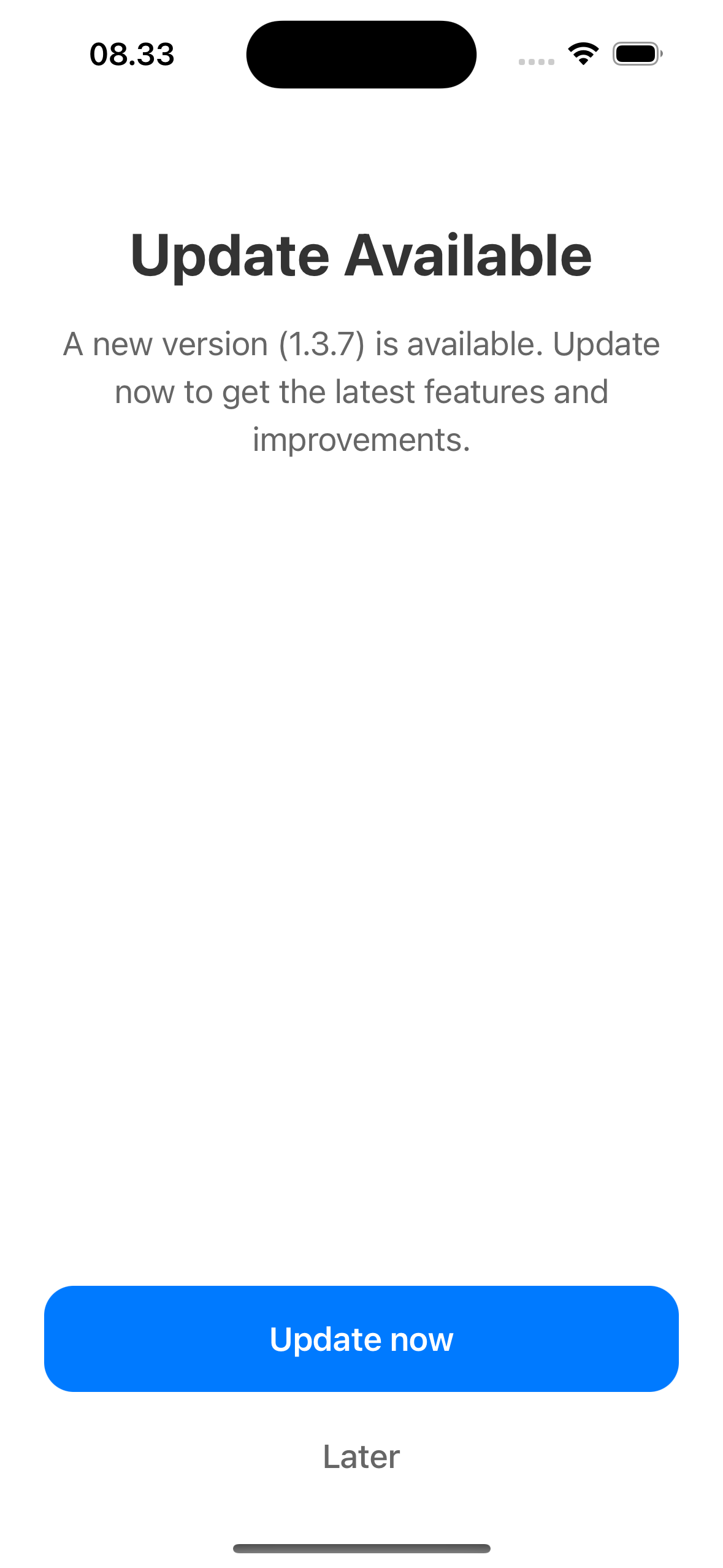
Pre-built regular update UI
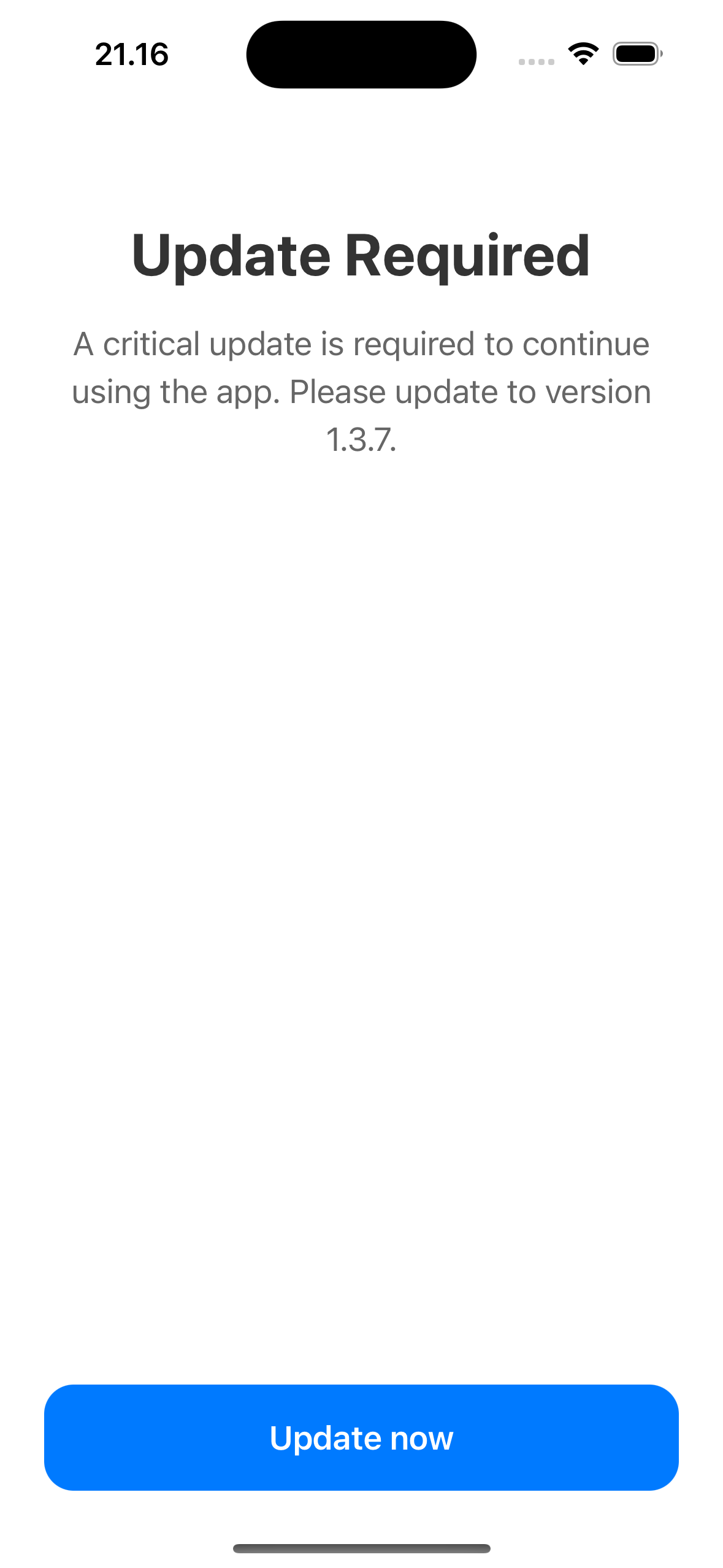
Pre-built force update UI
For a streamlined integration, you can use the pre-built update UI provider that handles version checking and update prompts automatically.
Props
| Prop | Type | Required | Description |
|---|---|---|---|
info | AppInfo | Yes | App configuration |
apiToken | string | Yes | API authentication token |
UpdateScreen | FC<UpdateScreenProps> | No | Custom update screen component |
languageKey | LanguageKey | No | Language for localized strings (defaults to English) |
theme | { updateButton?: UpdateButtonTheme } | No | Theme customization |
import { AppUpdateProvider } from "appcockpit-react-native-sdk";

const App = () => {
  const info = {
    platform: Platform.OS === "ios" ? "ios" : "android",
    appId: "<appcockpit_app_id>",
    appstoreId:
      Platform.OS === "ios" ? "<apple_app_store_id>" : "<play_store_id>",
    appVersion: "1.0.0",
    environment: "production",
  };

  const apiKey = "<api_token>";

  // Optional theme for the update button:
  const theme = {
    updateButton: {
      backgroundColor: "#FF0000",
      textColor: "white",
    },
  };

  return (
    <AppUpdateProvider info={info} apiToken={apiKey} theme={theme}>
      <AppContent />
    </AppUpdateProvider>
  );
};
The AppUpdateProvider automatically handles:
- Version checking on app startup
- Displaying update prompts when needed
- Managing force update scenarios (non-dismissible)
- Redirecting to app stores for updates
- Persisting dismissed optional updates via AsyncStorage
Custom update version UI
You can customize the update screen by providing your own component via the UpdateScreen prop, or omit it to use the default update UI.
import {
  AppUpdateProvider,
  type UpdateScreenProps,
} from "appcockpit-react-native-sdk";

const MyUpdateScreen: FC<UpdateScreenProps> = ({
  versionInfo,
  appInfo,
  onClose,
  onUpdate,
  children,
}) => {
  return (
    <View style={styles.container}>
      <Text style={styles.title}>Update Available</Text>
      <Text style={styles.message}>
        Version {versionInfo.version} is now available. Please update to
        continue.
      </Text>

      <View style={styles.buttonContainer}>
        <TouchableOpacity style={styles.updateButton} onPress={onUpdate}>
          <Text style={styles.updateButtonText}>Update Now</Text>
        </TouchableOpacity>

        {!versionInfo.force_update && (
          <TouchableOpacity style={styles.closeButton} onPress={onClose}>
            <Text style={styles.closeButtonText}>Later</Text>
          </TouchableOpacity>
        )}
      </View>
    </View>
  );
};

const App = () => {
  return (
    <AppUpdateProvider
      UpdateScreen={MyUpdateScreen}
      info={info}
      apiToken={apiKey}
    >
      <AppContent />
    </AppUpdateProvider>
  );
};
Important callbacks:
onUpdate(): Call this when the user wants to update. The SDK will redirect to the app store.onClose(): Call this when the user dismisses the update (only available for non-forced updates).
Standalone Version Check
For cases where you don't want to use the AppUpdateProvider component (e.g., non-React contexts or custom flows), you can use the checkVersionUpdate function directly. It checks for updates and shows a native Alert dialog instead of the full-screen modal.
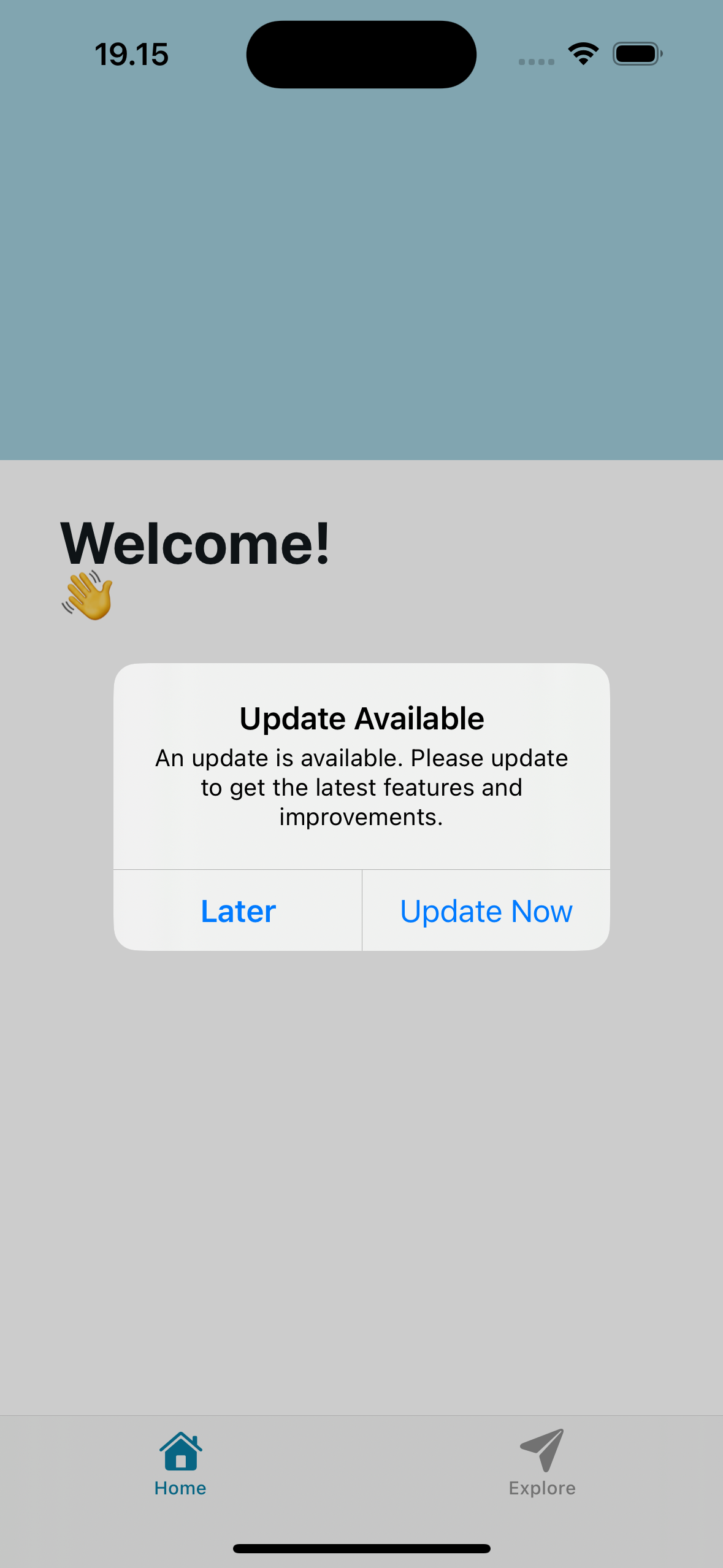
Regular update alert
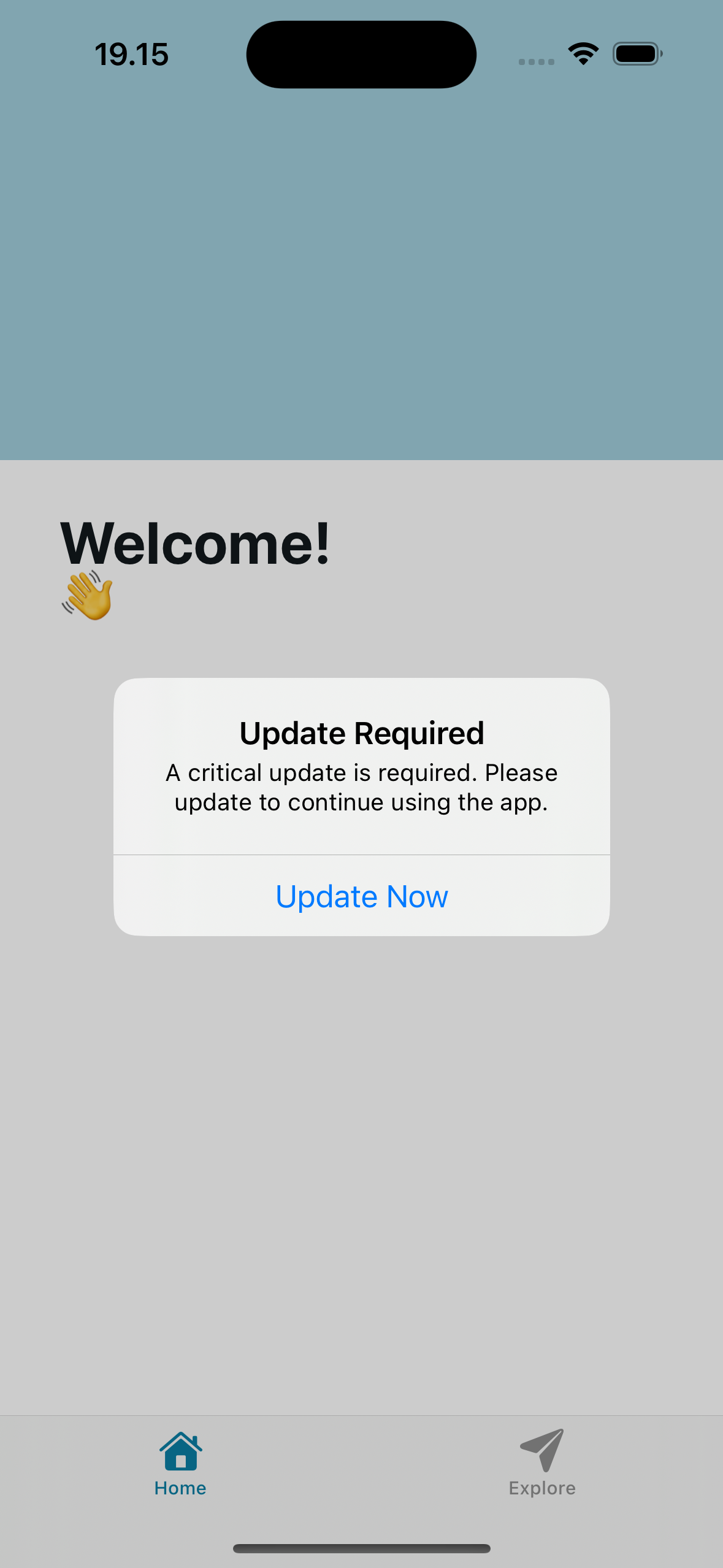
Force update alert
import { checkVersionUpdate, LanguageKey } from "appcockpit-react-native-sdk";

await checkVersionUpdate(appInfo, "your-api-token", LanguageKey.EN);
- Force updates show a non-dismissible alert that reopens after pressing "Update Now".
- Optional updates can be dismissed. Dismissed versions are persisted via AsyncStorage.
Pre-built maintenance mode UI
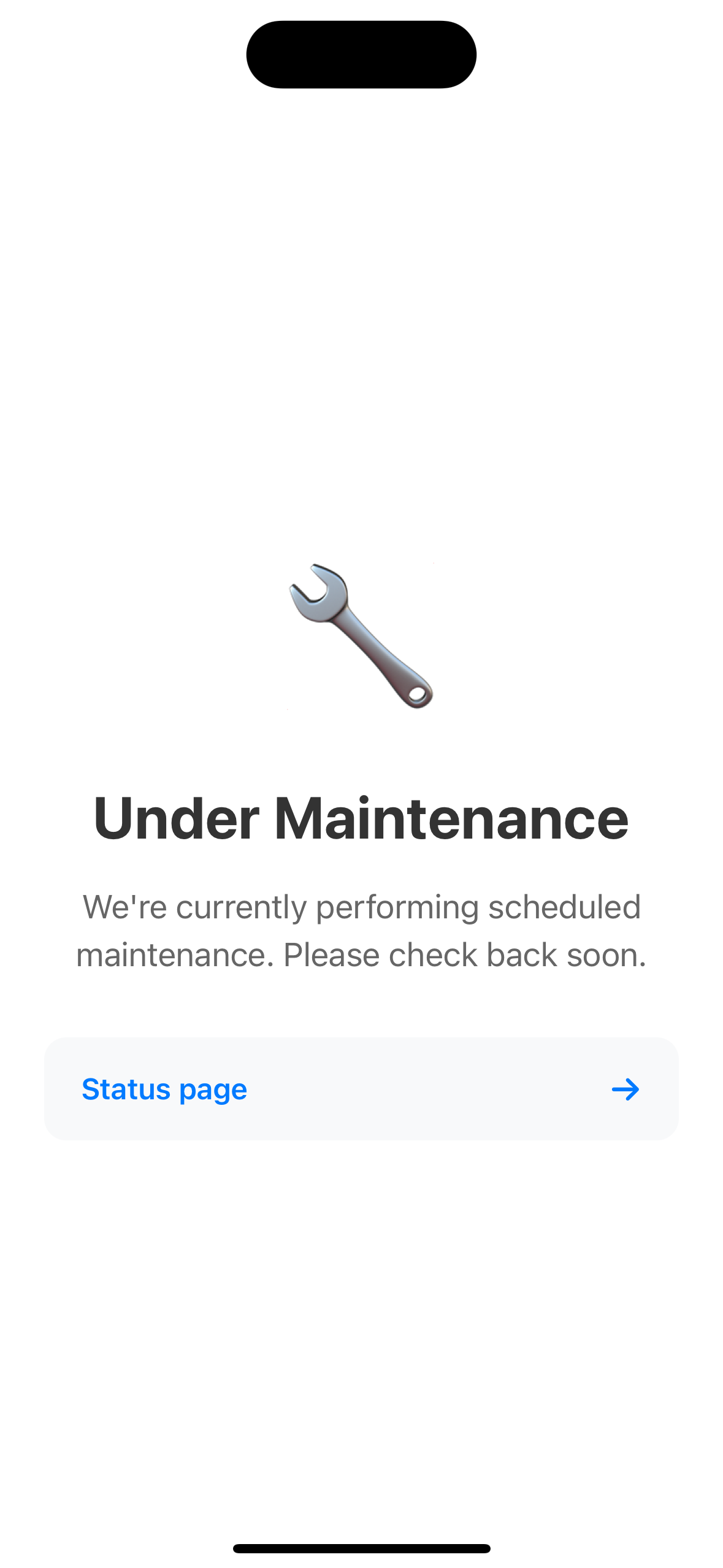
Pre-built maintenance mode UI
For a streamlined maintenance mode integration, you can use the pre-built maintenance UI provider that handles maintenance checking and display automatically.
Props
| Prop | Type | Required | Description |
|---|---|---|---|
info | MaintenanceInfo | Yes | App ID and environment |
apiToken | string | Yes | API authentication token |
MaintenanceScreen | FC<MaintenanceScreenProps> | No | Custom maintenance screen component |
theme | MaintenanceTheme | No | Theme customization |
import { MaintenanceProvider } from "appcockpit-react-native-sdk";

const App = () => {
  const info = {
    appId: "<appcockpit_app_id>",
    environment: "production",
  };

  const apiKey = "<api_token>";

  // Optional theme for the maintenance screen:
  const theme = {
    backgroundColor: "#1a1a2e",
    titleColor: "#ffffff",
    messageColor: "#cccccc",
    linkColor: "#4ea8de",
  };

  return (
    <MaintenanceProvider info={info} apiToken={apiKey} theme={theme}>
      <AppContent />
    </MaintenanceProvider>
  );
};
The MaintenanceProvider automatically handles:
- Maintenance mode checking on app startup
- Displaying maintenance screen when maintenance mode is active
- Blocking app access during maintenance
- Periodic re-checking until maintenance ends
The maintenance response may include links (e.g., status page, social media) that are rendered as tappable cards.
Custom maintenance mode UI
You can customize the maintenance screen by providing your own MaintenanceScreen component, or omit it to use the default maintenance UI.
import {
  MaintenanceProvider,
  type MaintenanceScreenProps,
} from "appcockpit-react-native-sdk";

const CustomMaintenanceScreen: FC<MaintenanceScreenProps> = ({
  maintenanceInfo,
  children,
}) => {
  return (
    <View style={styles.container}>
      <Text style={styles.title}>
        {maintenanceInfo.title || "Under maintenance"}
      </Text>
      <Text style={styles.message}>
        {maintenanceInfo.description ||
          "We're currently performing maintenance. Please check back soon."}
      </Text>
    </View>
  );
};

const App = () => {
  return (
    <MaintenanceProvider
      MaintenanceScreen={CustomMaintenanceScreen}
      info={info}
      apiToken={apiKey}
    >
      <AppContent />
    </MaintenanceProvider>
  );
};
Types
AppInfo
type AppInfo = {
  platform: "ios" | "android";
  appId: string; // Your app identifier (e.g., bundle ID)
  appstoreId: string; // App Store ID (iOS) or package name (Android)
  appVersion: string; // Current app version (e.g., "2.5.0")
  environment: string; // Deployment environment (e.g., "production")
  userId?: string | null; // Optional user ID for authentication tracking
};
MaintenanceInfo
type MaintenanceInfo = {
  appId: string;
  environment: string;
};
VersionResponse
type VersionResponse = {
  version: string;
  platform: "ios" | "android";
  force_update: boolean;
  default_update_message: string | null;
  update_messages?: Record<string, string>;
};
MaintenanceResponse
type MaintenanceResponse = {
  active: boolean;
  title: string | null;
  description: string | null;
  links?: Array<{ title: string; url: string }>;
};
Language Support
The SDK supports 20 languages for built-in update prompts. Pass a LanguageKey to AppUpdateProvider:
import { AppUpdateProvider, LanguageKey } from "appcockpit-react-native-sdk";

<AppUpdateProvider info={info} apiToken={apiKey} languageKey={LanguageKey.DE}>
  <AppContent />
</AppUpdateProvider>;
If no language is specified, the SDK defaults to English.
The API can also return custom update_messages per language, which take priority over the built-in defaults.
| Key | Language |
|---|---|
EN | English |
ES | Spanish |
FR | French |
DE | German |
IT | Italian |
PT | Portuguese |
RU | Russian |
JA | Japanese |
KO | Korean |
ZH | Chinese |
AR | Arabic |
HI | Hindi |
NL | Dutch |
SV | Swedish |
DA | Danish |
NO | Norwegian |
FI | Finnish |
PL | Polish |
TR | Turkish |
HE | Hebrew |